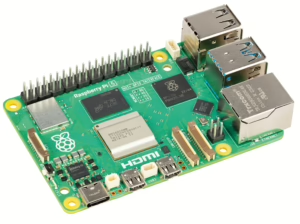
 After the hardware components for my Allsky camera system had slowly but surely all arrived, the next step was to set up the Raspberry Pi 5. Since I’m using Raspberry Pi OS Lite as my operating system – a slimmer version without a graphical user interface – I decided to set it up without a monitor and keyboard, also known as headless setup. Here’s how I went about it.
1. Transfer image via imager
First I had to transfer the Raspberry Pi OS Lite to the microSD card. I used the Raspberry Pi Imager (link to tool) for this:
- Read the microSD card via a card reader with my Macbook
- Selected Raspberry Pi OS Lite via the imager
- Entered basic settings such as user name, WLAN data etc. directly in the imager
- Wrote the image to the microSD card
The imager ejects the SD card after verifying the image – therefore it must be read in again after the operating system – the easiest way to do this is to briefly unplug the card reader and plug it in again.
2. Activate SSH
As I didn’t want to use a monitor or keyboard, I need the option of accessing the Raspberry Pi and the Raspberry Pi OS via SSH. To enable ssh, an empty file with the name ssh (without file extension) must be created in the boot directory of the SD card. This enables remote access as soon as the Raspberry Pi is started with the access data that you entered when configuring the image.
3. Set up WLAN connection
As my Raspberry Pi was to be connected to my network via WLAN, I also had to configure the WLAN. To do this, I created a file called wpa_supplicant.conf in the boot directory and added the following lines:
ctrl_interface=DIR=/var/run/wpa_supplicant GROUP=netdev
country=DE
update_config=1

network={
ssid="YOUR WIFI NAME"
psk="YOUR WIF PASSWORD"
}
This file ensures that the Raspberry Pi establishes a Wi-Fi connection immediately after starting. I have encrypted my WLAN password with the following command and stored the encrypted password generated in this way in the wpa_supplicant.conf file:
wpa_passphrase YOUR-WIFI-NAME YOUR-WIFI-PASSWORD
4. First start of the Raspberry Pi
After I had prepared the SD card with the necessary adjustments, I inserted it into the Raspberry Pi 5, connected the power supply and waited until a connection was possible via SSH. To do this, use the following command and wait until the password prompt appears. As I have changed the host name of the Raspberry, it can be reached at allsky.local. I will not reveal my user name here for reasons. The default user name “pi” does not exist on my machine.
ssh USERNAME@allsky.local
If the user settings that were defined during the image creation do not work, a file with the name userconf.txt must be created in the root directory of the SD card. This contains USERNAME:PASSWORD (i.e. first the user name, then a colon and then the password). Important: Call sudo raspi-config immediately after the first start and change the password – it will then be stored in encrypted form.
5. Make further basic settings
After calling up raspi-config , a graphical interface appears where you can make various basic settings – including language, time zone, etc.
6. One update please!
Last but not least: Run a round of updates before continuing. This is very easy with the command
sudo apt-get update && sudo apt-get upgrade -y
…and then: sudo reboot, reboot once!
…or shut down cleanly with: sudo shutdown -h 0