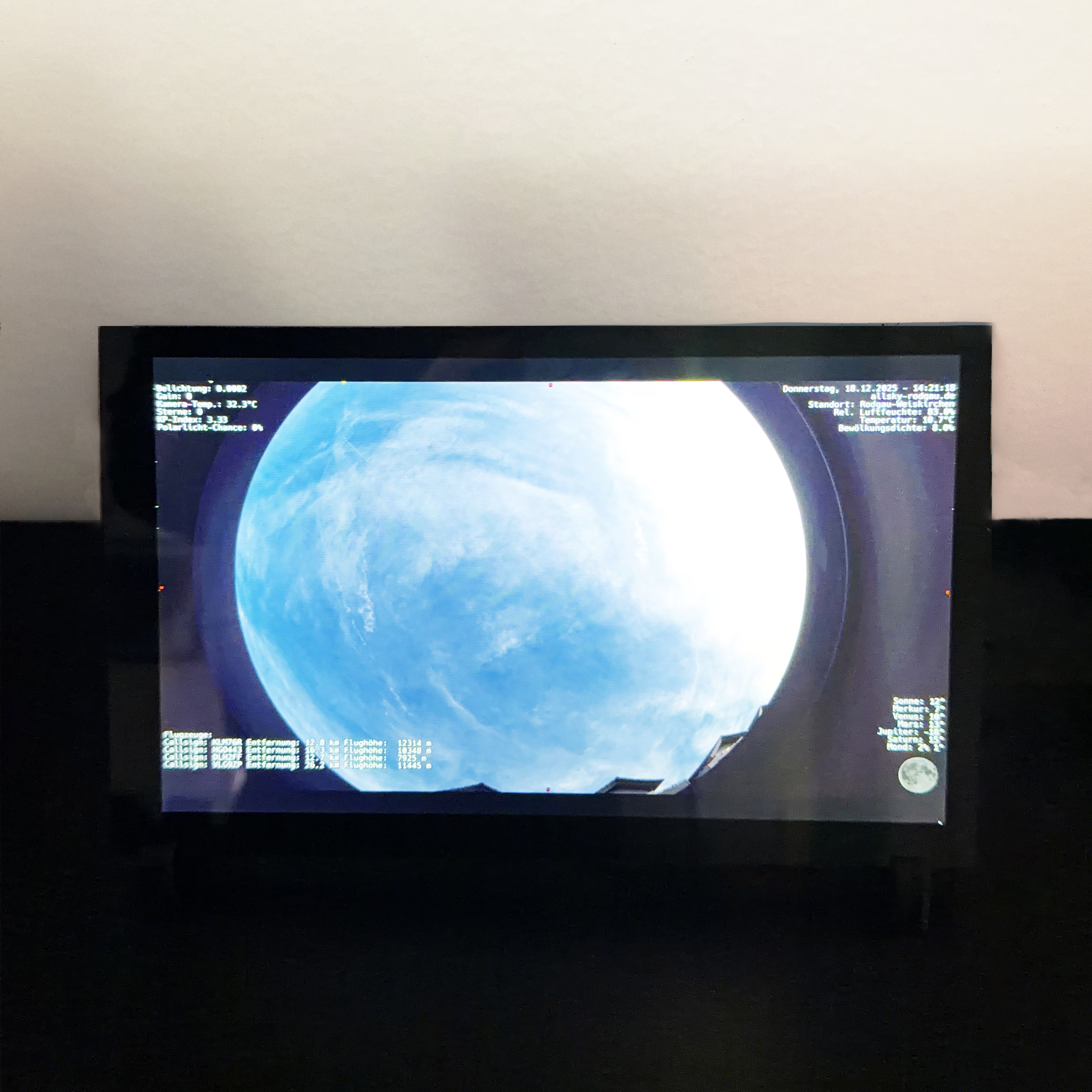
 I had the crazy idea of building a digital picture frame to display the latest photo from my Allsky camera. The main trigger was the realization that indi-allsky with Redirect Views makes it really easy to always display the latest picture. And the second realization: touch displays aren’t even that expensive.
In this article, I document a tried-and-tested setup with Raspberry Pi 4, HDMI touch display and Chromium in real kiosk mode – including typical pitfalls and their solutions.
Hardware setup
The following components were used for the setup:
- Raspberry Pi 4 (2-8 GB RAM)
- HDMI touch display (10.1 inch, 1280×800) – available e.g. from a large Chinese online retailer – detailed information here
- MicroSD card (min. 32 GB)
- Separate power supply for Raspberry Pi and display
- USB touch cable + HDMI cable
Contrary to the manufacturer’s instructions, I use neither a Y-cable nor a loop-through solution for the power supply of Pi and display, but a dual-port power supply (USB-C for the Pi, USB-A/micro-USB for the display).
Operating system and basic configuration
Raspberry Pi OS Lite (Bookworm/Trixie) is used as the operating system. The system runs headless, Xorg is only started for the kiosk.
sudo apt update
sudo apt install --no-install-recommends xserver-xorg xinit chromium x11-xserver-utils xbanish
SSH should be activated in order to be able to administer the system without a connected monitor.
Resolution and HDMI configuration
The display works with a native resolution of 1280×800. Under modern Raspberry Pi versions with KMS/DRM, the resolution is reliably set via the kernel.
In /boot/firmware/cmdline.txt, the following is added at the end of the (single-line!) configuration:
video=HDMI-A-1:1280x800@60
This ensures that the kernel, Xorg and Chromium work consistently with the native display resolution.
Kiosk start with Xorg and Chromium
The actual kiosk start is carried out via a separate .xinitrc. Chromium is started as the only process via exec.
/bin/sh

unset SESSION_MANAGER
unset DBUS_SESSION_BUS_ADDRESS

xset s off
xset s noblank
xset +dpms
xset dpms 0 0 600

xbanish &
sleep 1

exec /usr/bin/chromium \
  --kiosk \
  --window-size=1280,800 \
  --window-position=0,0 \
  --force-device-scale-factor=1 \
  --noerrdialogs \
  --disable-session-crashed-bubble \
  --disable-infobars \
  --disable-translate \
  --disable-features=TranslateUI \
  --lang=en-GE \
  --disable-pinch \
  --overscroll-history-navigation=0 \
  --disable-features=TouchpadOverscrollHistoryNavigation \
  --disable-component-update \
  --disable-background-networking \
  --disable-sync \
  --disable-default-apps \
  --disable-extensions \
  --disable-popup-blocking \
  --disable-notifications \
  --autoplay-policy=no-user-gesture-required \
  file:///home/dante/kiosk/index.html
This starts Chromium directly in full screen without UI, without zoom effects and without visible borders. xbanish deactivates the mouse pointer.
HTML wrapper for the picture frame
The picture frame itself is controlled via a local HTML file. This loads an image (or a URL) and updates it cyclically. hostname.local must be replaced with your hostname.
<!DOCTYPE html>
<html lang="en">
<head>
  <meta charset="UTF-8">
  <meta name="viewport" content="width=1280, height=800, initial-scale=1.0, user-scalable=no">

  <title>Kiosk</title>

  <style>
    html, body {
      margin: 0;
      padding: 0;
      width: 1280px;
      height: 800px;
      overflow: hidden;
      background: black;
    }

    img {
      display: block;
      width: 1280px;
      height: 800px;
      object-fit: contain;
    }
  </style>
</head>
<body>

  <img
    id="image"
    src="https://access.allsky-rodgau.de/indi-allsky/latestimage"
    alt="Allsky Image"
  >

  <script>
    setInterval(() => {
      const img = document.getElementById('image');
      img.src = 'https://access.allsky-rodgau.de/indi-allsky/latestimage?ts=' + Date.now();
    }, 20000);
  </script>

</body>
</html>
Disable Chromium translation popup permanently
There is a relatively annoying translation popup in Chromium, which I have deactivated. Newer Chromium versions partially ignore pure start flags. The most reliable method is therefore a system-wide policy.
sudo mkdir -p /etc/chromium/policies/managed
sudo nano /etc/chromium/policies/managed/disable-translate.json
{
  "TranslateEnabled": false,
  "TranslateForceTriggerOnLanguageDetection": false,
  "DefaultLanguages": ["de"],
  "AcceptLanguages": ["de", "de-DE"]
}
After a restart, no more language or translation dialogs appear.
Energy-saving mode for the display
The display can be switched off automatically via DPMS after a period of inactivity. Touch or input immediately wakes it up again.
xset +dpms
xset dpms 0 0 600
In the example, the display switches off after 10 minutes.
Optional troubleshooting
No picture or incorrect resolution:
DISPLAY=:0 xrandr
Chromium does not start:
which chromium
journalctl -b | grep chromium
SSH reacts with a delay:
After kernel or graphics changes, the first boot can take considerably longer. Be patient! 2-3 minutes is normal.
Black borders in the kiosk:
Almost always a Chromium viewport issue. Solution: fixed window size via --window-size and no use of vw/vh in CSS.