Automatic indi-allsky backup on external drive (Fritzbox NAS)

In this article, I describe how I back up my indi-allsky installation on my Raspberry Pi fully automatically to an external hard disk.

The official indi-allsky documentation describes very well what should be backed up – but leaves open how to turn it into a reliable, automated backup.

In my setup, indi-allsky runs permanently on a Raspberry Pi. The backup is not done locally, but on an external SSD on a Fritzbox, connected via SMB.

*** Update – please have a look at my new backup-strategy here! ***

The aim was to consistently implement the recommendations from the official documentation: Backup and Recovery – indi-allsky and to expand it to production readiness:

  • external target
  • automatic backups
  • integrity checks
  • time-based retention
  • Mail notification in case of errors

…and this is how I proceeded!
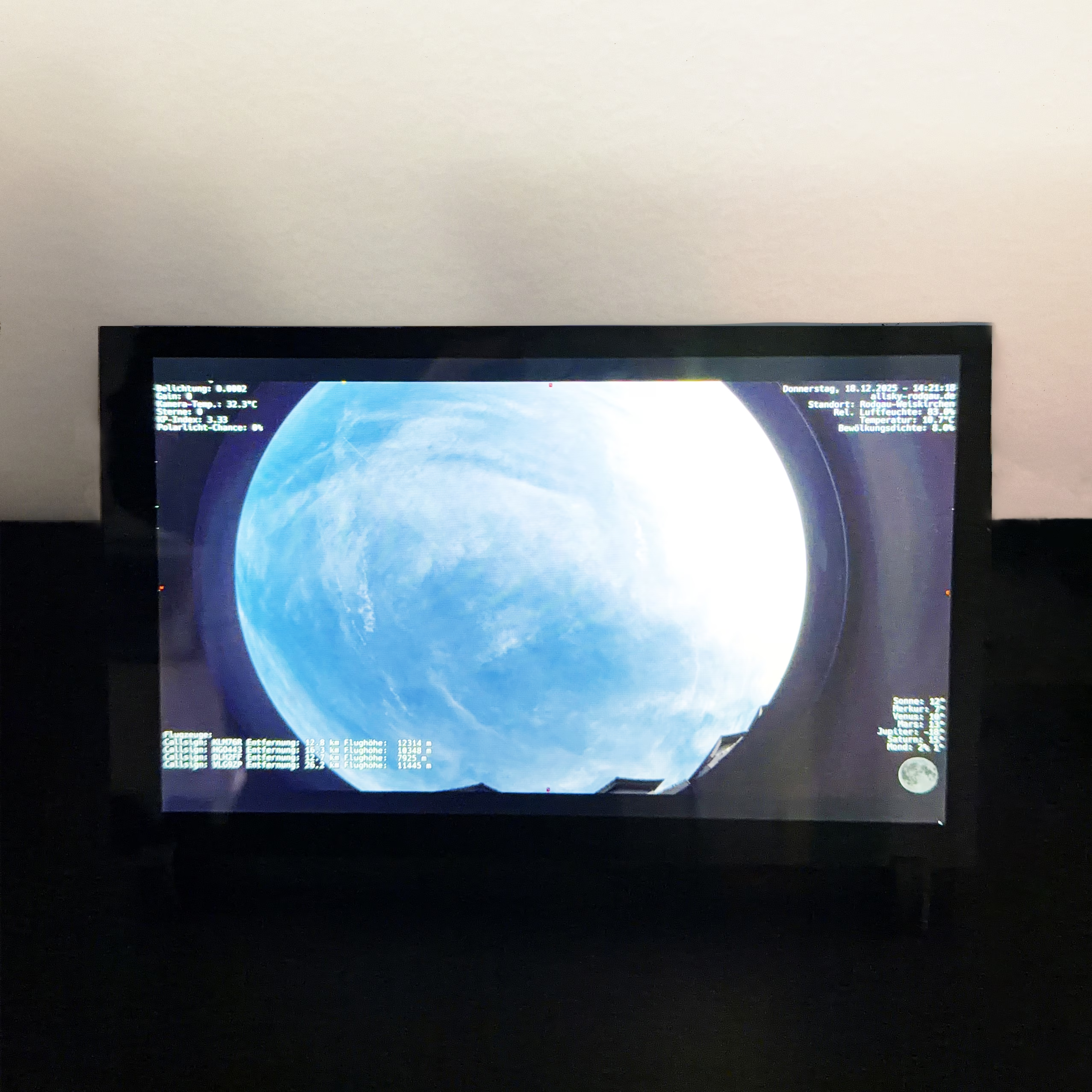
Digital picture frame with Allsky images: Update with timelapse videos on the Raspberry Pi

After using the basic version of my Raspberry Pi setup as a digital picture frame for a few weeks in everyday life, it was clear that the system was stable – but the dashboard itself could be significantly improved.

I have described the basis here:
Raspberry Pi as a digital picture frame in kiosk mode – hardware, setup & troubleshooting

This update builds exactly on this and describes the final, corrected version, which is now running permanently and unattended.

indi-allsky Watchdog: Automatic reboot in case of camera problems with systemd and Bash

Bitchy USB cameras like the ZWO ASI678MC, cheaply made cables, temperature fluctuations: Raspberry Pi-based all-sky cameras are technically demanding. Even stable setups with indi-allsky can get into a state where no more new images are generated – without the process itself crashing.

This article shows a robust, tried-and-tested watchdog solution that works independently of indi-allsky internals:
An external watchdog monitors the actual image production (JPGs) and automatically restarts indi-allsky as soon as the data flow stalls. Optionally including e-mail notification.

Raspberry Pi as a digital picture frame in kiosk mode – hardware, setup & troubleshooting

External displayI had the crazy idea of building a digital picture frame to display the latest photo from my Allsky camera. The main trigger was the realization that indi-allsky with Redirect Views makes it really easy to always display the latest picture. And the second realization: touch displays aren’t even that expensive.

In this article, I document a tried-and-tested setup with Raspberry Pi 4, HDMI touch display and Chromium in real kiosk mode – including typical pitfalls and their solutions.

Hardware setup

The following components were used for the setup:

  • Raspberry Pi 4 (2-8 GB RAM)
  • HDMI touch display (10.1 inch, 1280×800) – available e.g. from a large Chinese online retailer – detailed information here
  • MicroSD card (min. 32 GB)
  • Separate power supply for Raspberry Pi and display
  • USB touch cable + HDMI cable

Contrary to the manufacturer’s instructions, I use neither a Y-cable nor a loop-through solution for the power supply of Pi and display, but a dual-port power supply (USB-C for the Pi, USB-A/micro-USB for the display).

Complete backup of the Raspberry Pi microSD card – indi-allsky backup

indi-allsky on a Raspberry Pi system regularly writes data (logs, databases, images, videos).
microSD cards are only designed for this to a limited extent and can fail without warning in the worst case.

A 1:1 backup of the entire SD card is possible in an emergency:

  • Insert a new microSD card
  • Restore the backup
  • System starts exactly in the previous state