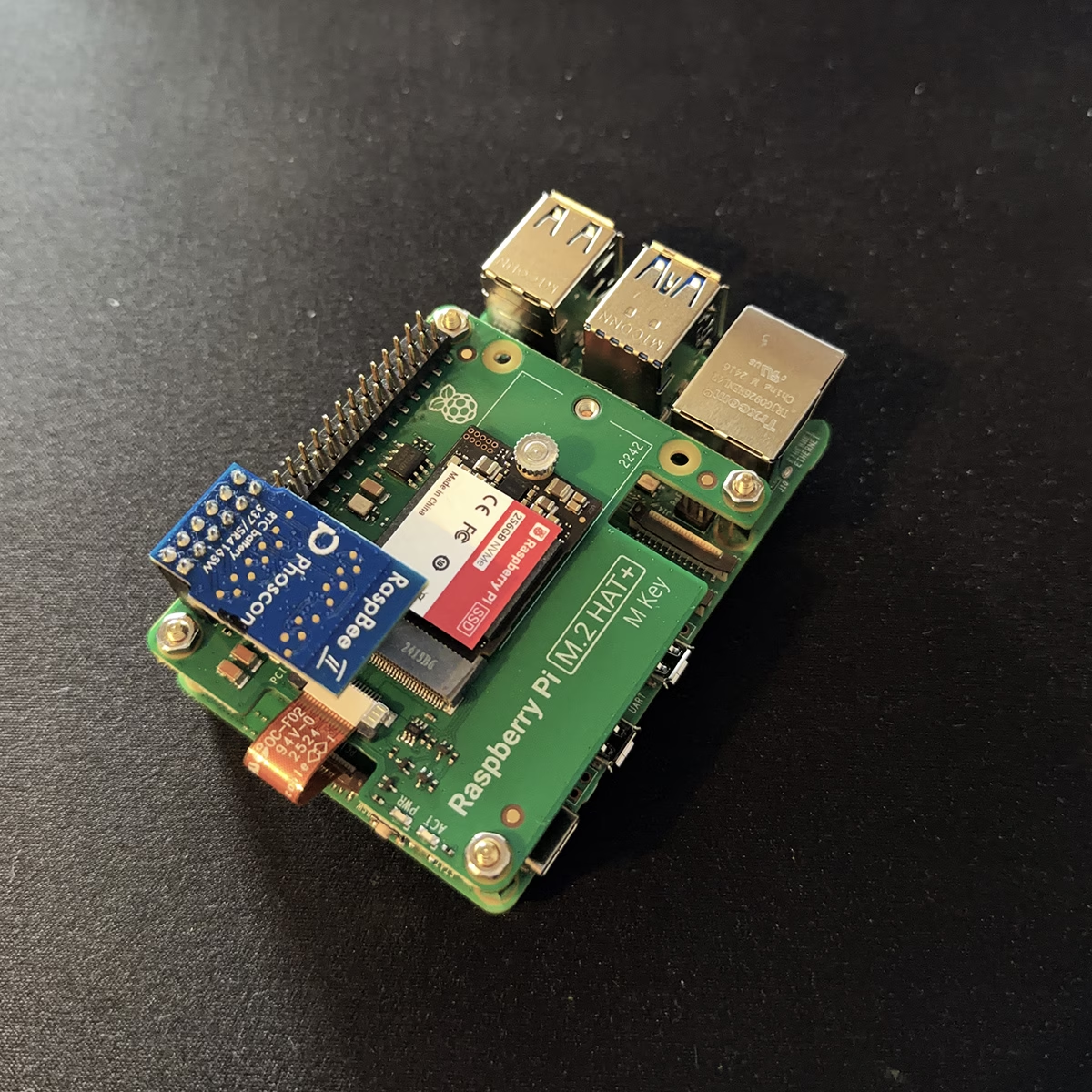
 After installing Home Assistant OS, it’s time to set it up: First login, network configuration, Wi-Fi setup and a clean backup strategy. This section shows step by step how to set up Home Assistant correctly after the start – including USB stick on the FritzBox as SMB network drive and automatic backups without add-ons.
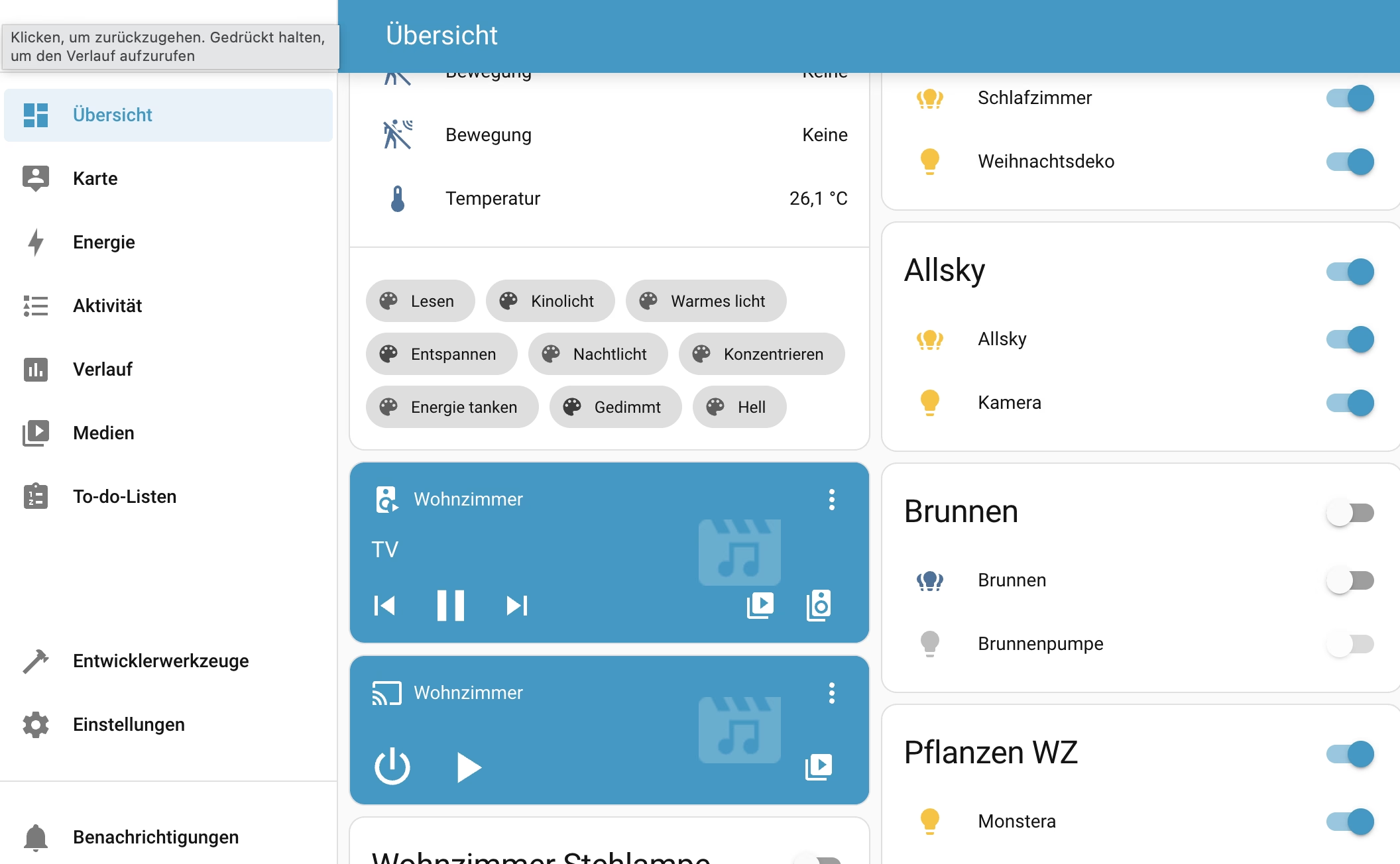
The good news is that once it’s up and running, it works perfectly and has a great, self-explanatory user interface.